To check a TRON transaction on your phone, open the TRONSCAN explorer, paste the transaction hash (TxID) into search, and open the matching transaction. Check its result, confirmation status, recipient and transfer amount before deciding whether the payment arrived. Viewing a public transaction does not require connecting a wallet.
This guide covers TRX and USDT-TRC20 transaction checks. TRONSCAN displays blockchain records; it does not control exchange deposits or reverse transfers. Tronscan News is an independent educational publication, not the official explorer.
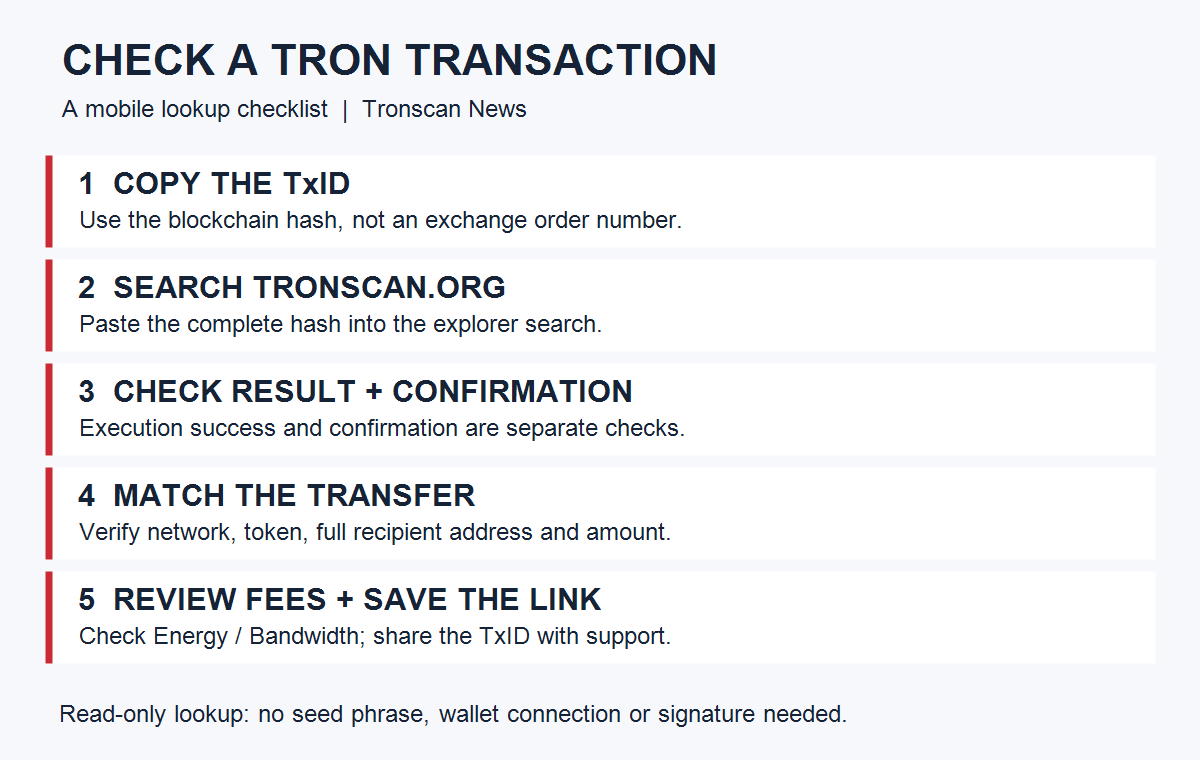
Table of Contents
What you need before searching
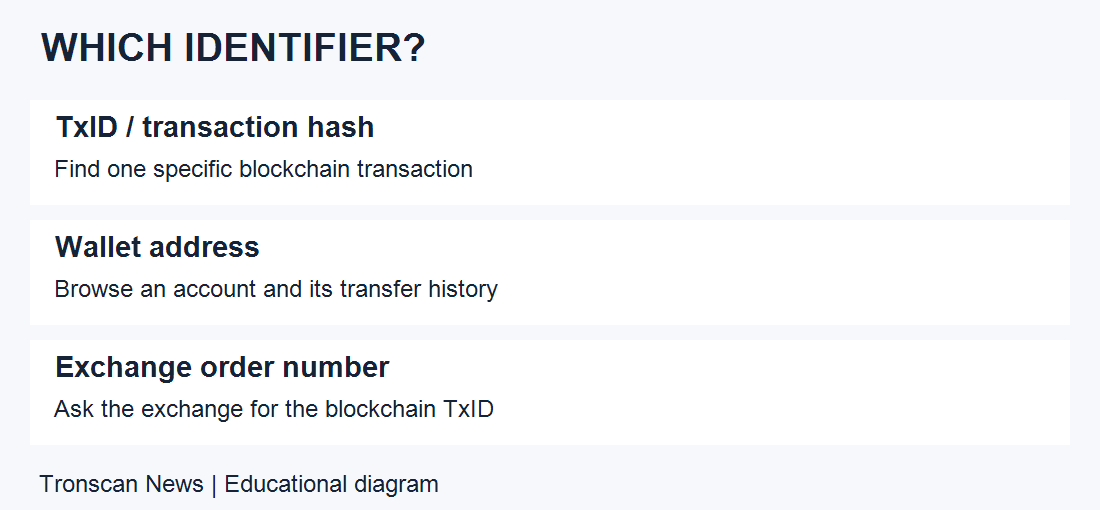
Find the TRON transaction hash in your wallet’s transfer details or the sending exchange’s withdrawal history. An exchange order number may be an internal reference rather than a blockchain transaction hash. Copy the field explicitly labelled TxID, transaction ID or transaction hash.
Also check the network used. USDT exists on several blockchains: this tutorial applies to TRON, commonly labelled TRC20. A transfer on another network must be checked with that network’s explorer.
How to check a TRON transaction on mobile
- Open the explorer directly. Type tronscan.org into your mobile browser and check the hostname before continuing. Avoid links in unsolicited messages.
- Paste the complete TxID into search. Remove accidental spaces. Select the transaction result rather than an unrelated address or token.
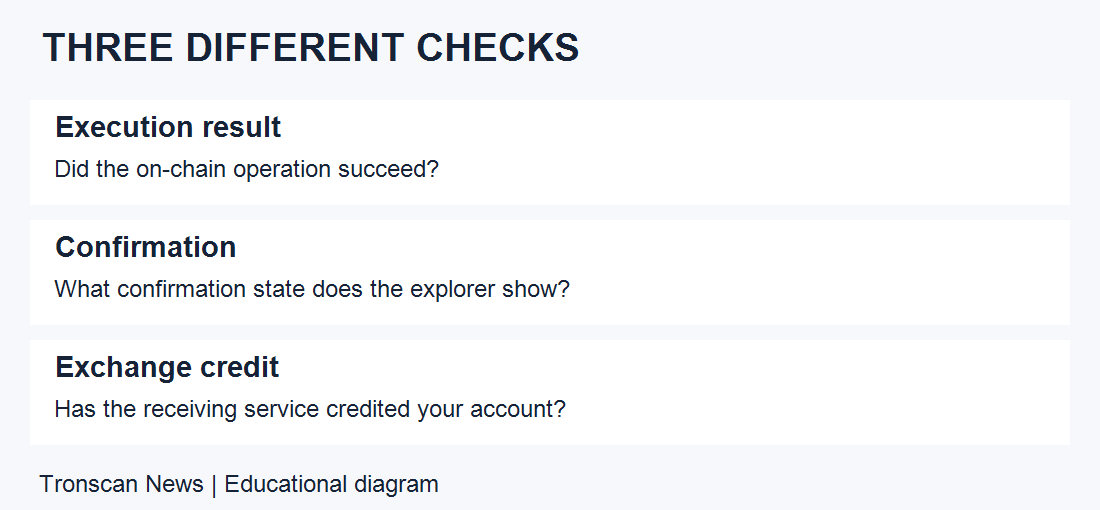
- Check execution and confirmation separately. Look for the transaction result and its confirmation information. A record appearing on-chain does not by itself mean a contract call succeeded.
- Match the transfer details. Compare the recipient address, token and amount with your intended payment. Expand the transfer records if the page groups details into sections.
- Review resources and fees. Check the displayed Bandwidth, Energy and any TRX fees. Save the transaction link if you need to contact the recipient or an exchange.
Mobile layouts and field names can change. If information is collapsed, expand the transaction details or transfer section; do not assume a missing field means the transaction failed.
How to read TRON transaction details
- Transaction hash: identifies this particular blockchain transaction. Share it when asking support to investigate.
- Result: indicates whether execution succeeded or reports an error. Read the specific error rather than relying on a wallet notification.
- Confirmation information: describes the transaction’s on-chain confirmation state. An exchange may apply its own deposit requirements.
- Sender and recipient: show which accounts are involved. Compare the full address, not only its first and last characters.
- Token transfer records: help identify the asset, destination and amount for a TRC20 transfer. For contract interactions, the top-level destination can be a contract rather than the final token recipient.
- Energy and Bandwidth: show resource consumption. They are different from the amount of tokens you intended to send.
For a token payment, check its contract identity as well as its displayed name. A familiar ticker alone is not sufficient evidence that you are viewing the intended asset.
TRON transaction status: choose your next step
Keep execution, network confirmation and exchange credit separate. A successful TRON transaction does not by itself confirm that a receiving service has credited your account.
| Result | Next step |
|---|---|
| No TxID or no matching record | Ask the sender for the broadcast status and original network details. An exchange order number is not a blockchain TxID. |
| Failed execution | Read the receipt and our TRON transaction errors guide before retrying. |
| Success with a matching recipient, but no service credit | Use the USDT not received checklist to compare the token, network and deposit requirements. |
USDT-TRC20 shows success, but the deposit is missing
Start by comparing the transfer recipient with the deposit address provided by the receiving service. Then check the network, asset and amount. A successful blockchain transfer and a credit to an exchange account are separate events.
If the on-chain details match, review the receiving service’s current deposit requirements and service notices. Contact its official support with the TxID, network, amount and time. Do not send another payment simply to test an unexplained delay.
If the recipient address or network does not match, contact the receiving service promptly. Recovery depends on who controls the destination and the service’s policies; the explorer cannot promise recovery.
What if a TRON transaction failed or cannot be found?
For a failed TRON transaction involving a smart contract, read the error. TRONSCAN’s official transaction failure guide describes causes including insufficient Energy and contract reverts. Check the wallet’s details before retrying; increasing a setting blindly can expose you to additional costs.
A failed transaction may still consume resources. The official explanation of failed-transaction fees explains why execution costs are not necessarily returned.
If no record is found, recopy the hash, confirm the network and ask the sending service whether it actually broadcast the withdrawal. Try again later if submission was recent. A screenshot saying “withdrawal requested” is not a substitute for a verifiable on-chain transaction.
A practical TRON transaction check: three examples
The examples below are illustrative, not records of real payments. Their purpose is to show how to turn an explorer result into a useful next step without assuming that every delay has the same cause.
Example A: the token transfer matches your payment
For this TRON transaction example, you intended to send 25 USDT. The explorer shows successful execution, and the token transfer record shows the intended asset, 25 units and the exact destination supplied by the recipient. This is stronger evidence than a wallet notification alone because you have matched the transfer itself.
If the destination is an exchange, check its deposit instructions next. Save the TRON transaction URL and ask the exchange to investigate crediting if its stated requirements have been met. You do not need to pay an unrelated person to “validate” a public blockchain record.
Example B: the contract call succeeded, but the record is different
You see a successful TRON transaction, but the token transfer section does not match the asset or recipient you expected. Stop and inspect the operation. You may be viewing a different transaction, a contract interaction other than a payment, or a similarly named token.
To identify the right TRON transaction, return to the sending wallet’s specific activity entry and copy its hash again. Compare the token contract with information from the intended asset’s issuer or the receiving service. A green success label answers whether an operation executed; it does not answer whether you selected the correct payment.
Example C: the exchange shows a withdrawal request without a hash
Before looking for a TRON transaction, remember that a withdrawal request may still be inside the sending platform’s workflow. Look for a blockchain TxID rather than repeatedly searching an internal order number. Ask the platform whether the request has been broadcast and which network it used.
Keep a record of the request time and the service’s status message. Without a matching public record, do not tell the recipient that an on-chain payment has definitely completed. Distinguish “requested,” “broadcast” and “credited” when communicating with support.
A mobile troubleshooting checklist
- Copy rather than retype. Long hashes and addresses are easy to mistype on a phone. If search fails, copy the value again from the original activity record.
- Check the whole address. Do not rely on a shortened preview or a familiar-looking address from transaction history. Compare it with the recipient’s trusted instructions.
- Keep units separate. The token amount, TRX fees and resource figures describe different parts of the transaction. A resource number is not an extra token payment to the recipient.
- Reopen the exact record. Save the transaction URL so a later check uses the same hash. Taking a screenshot is useful for context, but the live record is easier for support to verify.
- Use the correct support channel. Send deposit-crediting questions to the receiving service and unbroadcast-withdrawal questions to the sender. Avoid strangers who contact you after a public help request.
What to include in a support request
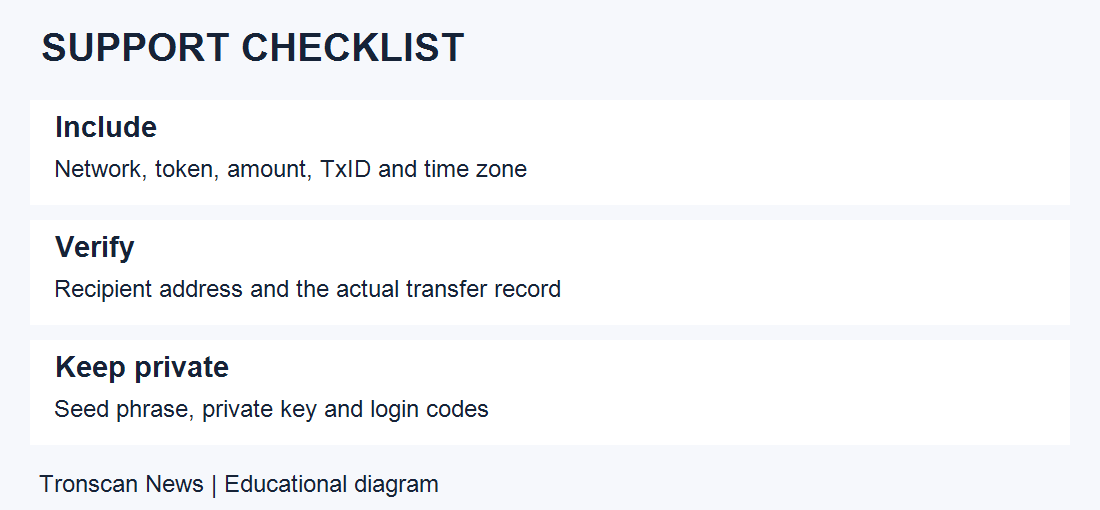
For a TRON transaction with a missing deposit, state the network, asset, amount, transaction hash and the issue in plain language. Explain whether the explorer shows a matching recipient and successful execution. Include the approximate time with a timezone so the support team can compare records accurately.
For example: “I sent a USDT payment using the TRON network. Here is the transaction link. The recipient matches my deposit address, but my account does not show the credit. Please check the deposit against your current requirements.” Replace this description with your actual findings; do not claim a match you have not checked.
Share screenshots through the service’s official support channel when requested, after hiding unrelated account details. A support agent may need a reference number, but a seed phrase or private key is never needed to read a TRON transaction. If someone asks you to sign an unexplained message or approve a token to investigate a deposit, stop and verify the request independently.
Five frequently asked questions
1. Do I need to connect my wallet to check a transaction?
No. A public TRON transaction lookup is read-only. You should not need a seed phrase, private key, signature or token approval to inspect a transaction.
2. Can I search with an address instead of a TxID?
Yes. Open the address’s transaction or token transfer history and locate the relevant record by time, asset and amount. A TxID is more precise when several transfers look similar.
3. Does “confirmed” guarantee my exchange account has been credited?
No. Blockchain confirmation does not show every step of an exchange’s internal processing. Check its supported network and deposit requirements, then contact its official support if necessary.
4. Can Tronscan cancel or reverse a TRON transaction?
No. A block explorer displays records; it cannot cancel a completed TRON transaction. Be cautious of anyone requesting an “unlock fee” or your recovery phrase to reverse it.
5. What can I share when asking for help?
Provide the transaction hash or explorer link, network and a clear description of the problem. These links reveal public transaction information, so consider privacy before posting them publicly. Never share wallet secrets or login codes.
Keep learning
Visit Tronscan News for our growing collection of TRON tutorials and network coverage. Before taking action on a payment problem, keep a record of the transaction and verify instructions with the service involved.
To compare current holdings with an individual transfer, read our TRON address balance guide for mobile readers. It explains TRX, token quantities and wallet display differences.
Leave a Reply