To update token information on TRONSCAN, an issuer can request a correction to the website, logo, or description shown on its token page. Start with the full contract address. An explorer profile edit leaves the contract, balances, and transaction history intact.
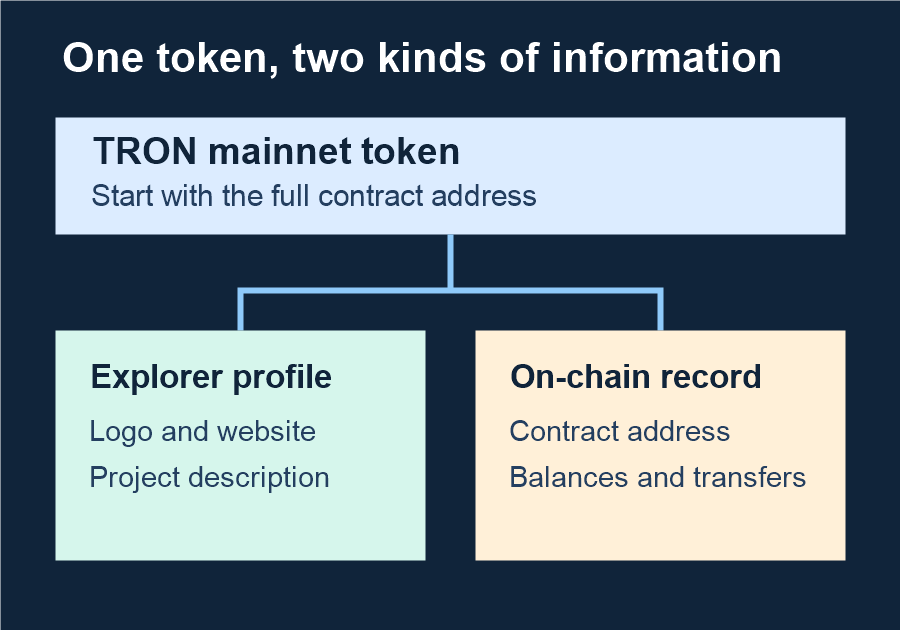
Table of Contents
The USDT token page in TRONSCAN’s walkthrough
TRONSCAN Support uses the TRON mainnet USDT page to show where an issuer opens the update menu. Its walkthrough was marked updated on November 4, 2026. On November 6, we checked that Tether’s supported-protocols page links to the same TRONSCAN token record for contract TR7NHqjeKQxGTCi8q. The walkthrough shows how to update token information from a real token page. It does not record a correction submitted by Tether.
Where each correction belongs
- Old logo, website, or description
- Use the basic information route. Reopen the same token page and compare the display field.
- Reputation label
- Use the separate TRONSCAN reputation route. Check the reputation field after review.
- Contract address, balance, or transfer
- Use the on-chain record. Compare the full address and inspect the relevant balance or transfer.
How to update token information for your project
- Open your token page by contract address. Compare the network and full address with your project’s published reference. See the TRC20 USDT contract guide for a worked address check.
- Write down the field to replace, its old and new values, and a public project source that supports the correction. Use the full destination URL for a website change.
- In the official walkthrough, the token page has a Basic Info section. Open Feedback, then Update Token Basic Info. Choose the issuer-wallet route or the request form. The form opens Contact Us and requires a TRONSCAN account. We checked the published instructions, without exercising either authenticated flow.
- If you use the issuer route, read the wallet prompt. The documented verification step is a message signature. Stop if the prompt asks for a transfer, token approval, private key, or recovery phrase.
- After processing, reopen the original token record. Check the exact field and confirm the contract address still matches. A form receipt only records the request.
The TRONSCAN beginner guide explains other records you can inspect. Find more guides at Tronscan News.
What to gather before you update token information
Start with the source your project already controls. If you are replacing a broken website link, identify a current public announcement or project page that names the replacement domain. Where possible, use a source that also identifies the network and contract. A project name shared across networks gives a reviewer less to work with than a contract reference tied to TRON mainnet.
Website and social links
Open the new URL yourself before filing. Check the host after any redirects, whether the page is readable while signed out, and whether it identifies the same project as the token record. If the project moved domains, explain the move in one sentence and cite the evidence. A generic home page or social profile with no project reference leaves the reviewer to infer the connection.
Treat each destination as a separate field. Replacing the project website does not automatically fix a whitepaper link on the old host. If both have moved, record both old and new URLs and explain which one is the home page and which one leads to the document. An unchanged link can be left out of the request.
Logo and description
Use the current project artwork from a source the team controls. Open the file at thumbnail size and check whether the mark is still recognizable. If the issuer has several brand variants, write down which asset should represent this token. In the description, keep the text focused on what the project does. Review any network or token-standard wording against your public documentation before submitting it.
A logo change is easy to verify visually. A description change is easier to miss. Copy the proposed wording into your handoff record so a second reviewer can compare the full text after approval. Check whether the opening sentence is still accurate when the explorer presents a shortened view.
Same ticker, different record
A project may publish separate contracts on different networks, or announce a migration to a new contract on the same network. For an explorer profile correction, specify the contract that should receive the update. If the project now uses a different contract, separate the migration announcement from any request to edit the old token page. Editing the older profile does not move holdings or change which token a wallet tracks.
The USDT example illustrates the distinction. Tether’s network list leads to a specific TRON contract. The same issuer also describes other networks on that page. Start with the TRON entry when you update token information on TRONSCAN. A logo or ticker alone cannot tell you which entry the official network list points to.
When the old information still shows
First compare the address in the request with the address on the token page. A matching ticker is weak evidence because different contracts can use the same ticker. If the addresses match, open the token page in a separate browser session and compare the same field. For a website correction, check the link destination as well as the text displayed beside it.
If the old value persists, keep the reference number or receipt from the original request and the date you checked. Send those details through the documented support route along with the contract address, the exact field, and your source for the replacement. This gives support enough information to distinguish a pending request from a correction submitted for another record. Keep wallet credentials out of the request.
For a team handoff, record the network and contract once, then put each field on its own line with its current value, proposed value, and source. After the request to update token information is reviewed, add the value actually displayed and the date you saw it. A team member can repeat that check without connecting a wallet.
Keep separate records of submission and verification
Before you update token information, save the values visible on the token page and record when you checked them. After sending the request, save the receipt separately. Once a new value appears, record the observed value and check date against the same contract. That gives your team three distinct observations: what the page showed before the request, when you sent it, and what the page showed afterward.
If you can verify the replacement logo but the website still leads to the old domain, mark those fields separately. A partial result is easier to report when you can name the field that still needs work. When asking for help, quote the exact value you observed and include the contract link so the recipient can repeat the check.
A field-by-field record for a token information request
Use the following worksheet when a project hands a correction from one person to another. It is an editorial checklist, not a copy of TRONSCAN’s form or a list of mandatory attachments. Its purpose is to make the requested token information and the evidence for it unambiguous. Leave a field out when you are not asking to change it.
- Record identity
- Write the network, full contract address, and original explorer URL. Keep this line above the proposed token information so it stays attached to every field in the request.
- Project website
- Record the currently linked address, proposed destination, final host after redirects, and the project-controlled page supporting the change. Test both the displayed link and its destination after processing.
- Whitepaper
- Identify the specific document and its version or date where available. Open the destination while signed out. A website move and a whitepaper move are separate corrections even when the old links share a domain.
- Official email
- Check the spelling and the domain against the project’s published contact details. Keep private correspondence and unnecessary personal details out of a public token information record.
- Logo
- Identify the exact artwork intended for this token. Keep its source reference and compare its shape and legibility at the small size used on the explorer. Do not interpret new artwork as a change of contract.
- Description
- Store the full proposed text, the source for factual claims, and any dated limits. Compare the saved description sentence by sentence rather than checking only that the first few words changed.
- Social links
- Put each platform on a separate line. Check the account’s project reference and full destination. A correct website in the token information does not establish that every linked social account is correct.
- Observed result
- After processing, add the actual displayed value and observation date beside each requested value. Use pending, matches, differs, or unable to check as distinct outcomes.
Repeat the public USDT source check
The USDT example is useful because it separates identifying a real token from having authority to change its profile. You can repeat the source comparison without connecting a wallet. This check concerns token information on TRON mainnet; it does not test an exchange deposit, a transfer, or control of Tether’s issuer wallet.
- Open Tether’s supported-protocols page linked above and find its Tron section. Use the USD₮ contract reference in that section, rather than a contract listed under another network.
- Compare the complete address with the USDT example linked by the TRONSCAN Support article. Both sources identify
TR7NHqjeKQxGTCi8q. A difference anywhere in the address means you have not reproduced this comparison.8ZY4pL8otSzgjLj6t - Keep the two source URLs and the date of the check. If an explorer page cannot be opened, record that limitation separately. Matching source links establish which record the documents reference; they do not establish the current contents of a page you could not load.
- Read the basic-information instructions separately from the reputation and price instructions. The presence of all three in one support article does not turn them into a single request.
On November 9, 2026, our renewed document check found the same TRON contract reference and the support article’s November 4 update date. We did not submit a token information correction, sign an issuer message, or verify a completed change to USDT. The public documents are the real case here. They support the record-selection and documented-menu explanation, not a claim that Tether requested or received an edit.
Choose a route based on your role
If you maintain a project’s token information, first establish which team member is responsible for its issuer wallet and which person can assemble public supporting material. Those can be different people. Preparing a correction record does not require giving either person the other’s wallet credentials.
The documented wallet route concerns the address associated with the issuer. An address holding USDT is not thereby entitled to change USDT’s token information. For a reader investigating a suspicious logo or link, the useful outcome may simply be to identify the correct contract and report the discrepancy through the official support route.
If the issuer wallet is unavailable, TRONSCAN describes a request-form route. That route requires a TRONSCAN account. It is separate from signing in to this publication, and this website cannot file the request on your behalf. Do not promise a review deadline: the cited instructions do not give a guaranteed completion time.
Before asking another person to update token information, send the network, contract link, requested fields, and public evidence together. Describe whether you need a request prepared, submitted, or independently checked afterward. These are separate tasks; asking someone to check a page does not require them to connect a wallet.
Read the result without overstating it
A saved request and a visible correction answer different questions. A submission receipt tells you that a request was sent through that route. A later observation tells you what the token information displayed when you checked. Keep the receipt time and observation time separate, especially when several fields are involved.
For example, a team might request a new website and a replacement logo together. This is a hypothetical workflow, not a reported USDT edit. If only the logo matches afterward, record the logo as matched and the website as differing. Do not mark all token information as corrected because one visible element changed.
A website check also has two parts: the destination stored in the link and the page reached after redirects. Record both if they differ. A renamed page heading is not evidence that the explorer’s outgoing URL changed. Conversely, an updated URL can lead to an unavailable site; that is a destination problem to document separately.
When the original explorer page is unavailable, leave verification open. Do not use a search snippet, a cached thumbnail, or an unrelated token page as proof that the requested token information is live. Recheck the same contract when the page becomes accessible and add the new observation date.
A correction handoff that another reader can verify
Use a short, factual note for support: identify the record, name the field, give the currently displayed value and proposed replacement, and cite the public source. Avoid marketing claims and unrelated transaction history. The reviewer needs evidence for the token information being changed, not a general endorsement of the project.
Keep internal decisions outside the public-facing description. For example, a team discussion about which logo to use can remain in the team’s own records; the request should identify the final asset. Before submission, have another person compare the contract address and replacement destinations with the source material.
Afterward, share the original token URL with the observation date and exact fields checked. State any remaining gap, such as an inaccessible whitepaper or a description still showing the older wording. This makes a token information handoff useful even when the result is incomplete. It also gives the next reviewer a concrete check to repeat.
Check links without sharing wallet access
For a token information review on a phone, open one destination at a time and return to the original record before checking the next field. Long addresses can wrap across lines; compare the complete address, not only its first and last characters. Copy the reference from the issuer source when a small screen makes comparison difficult.
Give a reviewer the public token information link and the fields to inspect. Do not send a connected-wallet session or a recovery phrase. If a destination requests account access, identify which service is asking before continuing. A public token information comparison and an authenticated correction are different activities. Record a blocked destination as unable to check, even if the other token information fields match.
FAQ
Can a holder use the issuer wallet route?
TRONSCAN documents the wallet route for issuers who need to update token information. Holding a token alone does not make your wallet the issuer wallet.
What if the issuer wallet cannot be connected?
TRONSCAN Support links to a separate request form through Contact Us. Sign in to your TRONSCAN account there and prepare evidence for the correction.
Does a new logo identify a token?
Use the full contract address and network to identify a token. Different tokens can display similar logos.
Can a profile edit change existing balances?
A profile edit changes explorer display information. Balances are read from the chain.
How do I know the correction went live?
Reopen the same token page and check the requested field. Record the date if you need to share the result with your team.
Editorial note. AI assisted drafting. The source check covered the published TRONSCAN instructions and Tether’s contract reference.
Leave a Reply