TRONSCAN Private Address Names let you save a label for a recurring TRON address in your explorer account. Use one when you keep returning to the same address and want a reminder of why you bookmarked it. Keep the full address handy so you can still check the record when the label is missing or you are signed out.
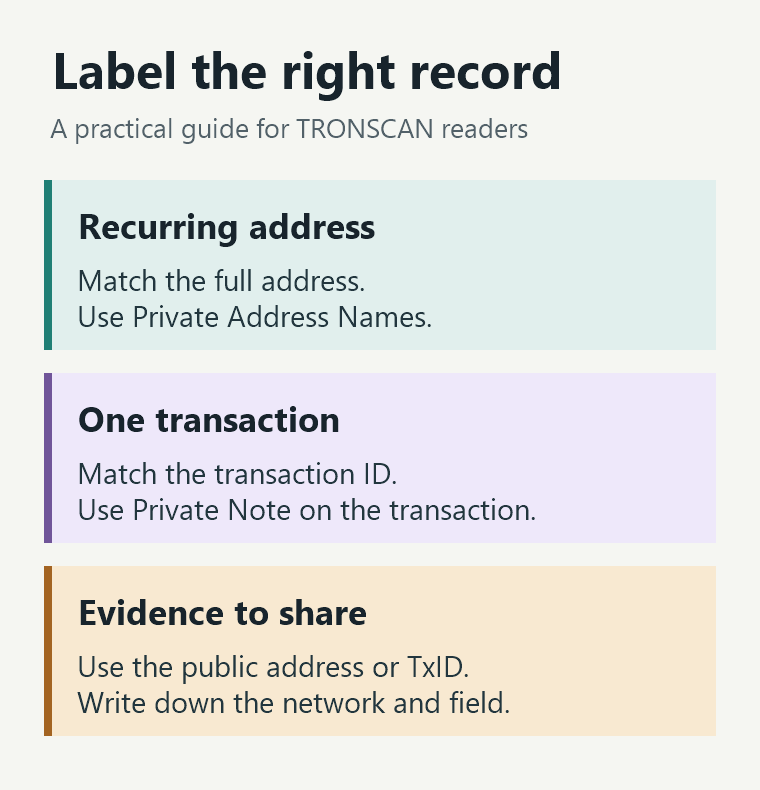
Table of Contents
What you can see before signing in
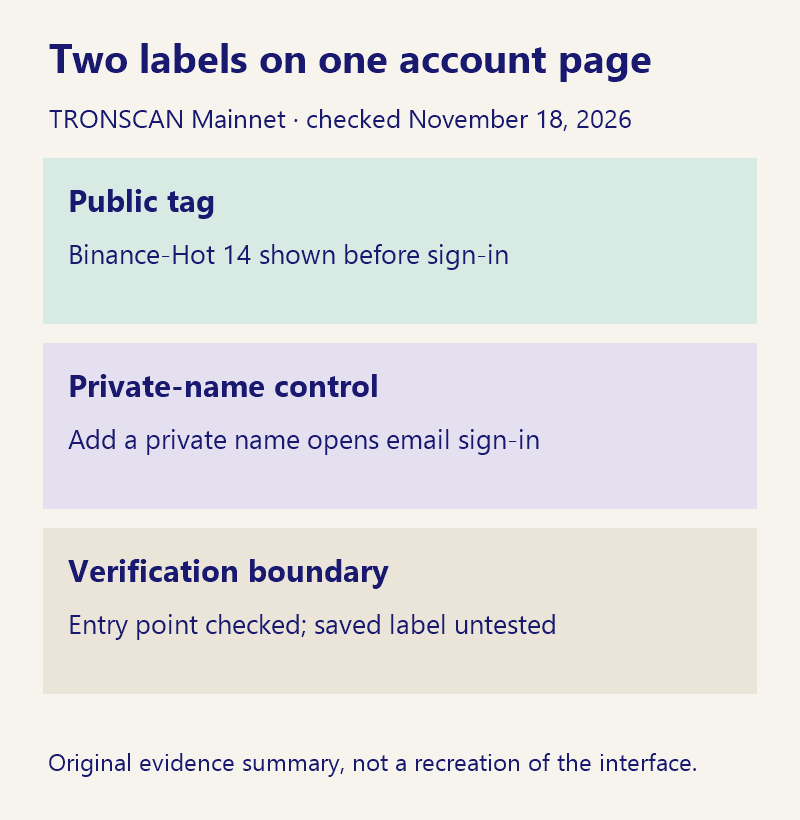
On November 15, 2026 at 15:01 UTC, we opened the TRONSCAN Mainnet account page. The full address is TCQ8X6x9GiK4khydWVKfLJvm8H6WK3RE8B. The page listed the public name tag Binance-Hot 14 and separately showed Add a private name. Selecting the latter opened an email sign-in dialog. We stopped at that dialog without creating a label or connecting a wallet. The name tag is an observation about the explorer display. We did not determine who controls the address.
Try the same read-only comparison on a phone. Look for the full address first, then find the public label and the private-name control. The public view is enough to reproduce this part of the check. An existing label can provide context, but use the TRON account labels guide before relying on it for attribution.
We repeated the public entry-point check on November 18, 2026 at 06:03 UTC. The same account page showed Binance-Hot 14 and Add a private name. Selecting the private-name control again opened a dialog with Email and Password fields. We did not sign in or create a label.
Choose the right field before you save a label
| What you need | Record to use | Check first |
|---|---|---|
| Recognize an address you revisit | Private Address Names | Match the full address you mean to label. |
| Annotate one transfer | Private Note on the transaction | Match the transaction ID. |
| Send someone evidence | Public address or transaction link | State the network and independently verifiable field. |
| Read an explorer’s attribution | Public tag | Identify the source and scope of the tag. |
How to find your Private Address Names
- Open the account on the correct network. The TRONSCAN lookup guide shows how to find an address record using its full value.
- Use the explorer’s email sign-in flow. The official Private Account Name instructions, updated November 17, 2026, direct signed-in users to Private Address Names.
- Follow those instructions to choose Add Label and enter the full address, a label and any optional context you want to keep. Use wording meaningful to you. Leave out recovery words, credentials and sensitive account details.
- Check the saved list and compare the full address with the intended record. If an entry is missing from Private Address Names, confirm you are signed in with the same email and look for the full address in the list before adding another entry.
Steps after sign-in follow the official documentation. We verified the entry point and sign-in prompt in the public interface. When another person needs to repeat your work, use a read-only transaction record with the network and link. Crop any private context from screenshots you share.
What to check when Private Address Names are missing
Start with the underlying account page. Compare the network and full address with the source that led you there. A similar-looking address or an address on another network should stay a separate record until you can verify it. A public name tag can still appear while you are signed out, as it did in the Mainnet case above.
Once you have matched the address, check which explorer account you signed in with and open Private Address Names and look in the saved list. If you find two labels you can no longer distinguish, keep a record of the full address and the source you used to identify it. Edit a label only after matching that record. Use the public account link when someone else needs to verify a balance or transfer history independently.
Four privacy mistakes to check before adding a name
The official Private Address Names workflow asks for an address, label and notes. Before entering them, decide what you will need to recognize later. A useful entry should let you recover the original public record even if its display name changes. These four checks apply to your own wording and recordkeeping. Our test covered the public entry point; the saved-list steps below follow the official instructions.
- Copying a label without its address. In our public check, the name Binance-Hot 14 appeared beside an account. Keep the full address and network with any personal description. If you later find a similarly named row, compare the addresses before treating them as one record.
- Putting a transaction detail in an address name. A single address can receive many transfers. A name such as “November payment” is hard to interpret when another transfer arrives. Keep the address label useful across visits and put a transaction-specific observation beside the full TxID in your separate record.
- Saving sensitive context in the notes. The label should help you recognize the record using the minimum information necessary. Keep recovery words, passwords, identity documents and private account credentials out of it. If a reference is meaningful only inside another service, keep that reference in that service’s appropriate records.
- Expecting someone else to see your personal wording. When you send a link, identify the network, address and field the recipient should inspect. Write any personal description separately and say it is your description. Have the other reader confirm the full address from the public page.
Build a useful label from a trusted address
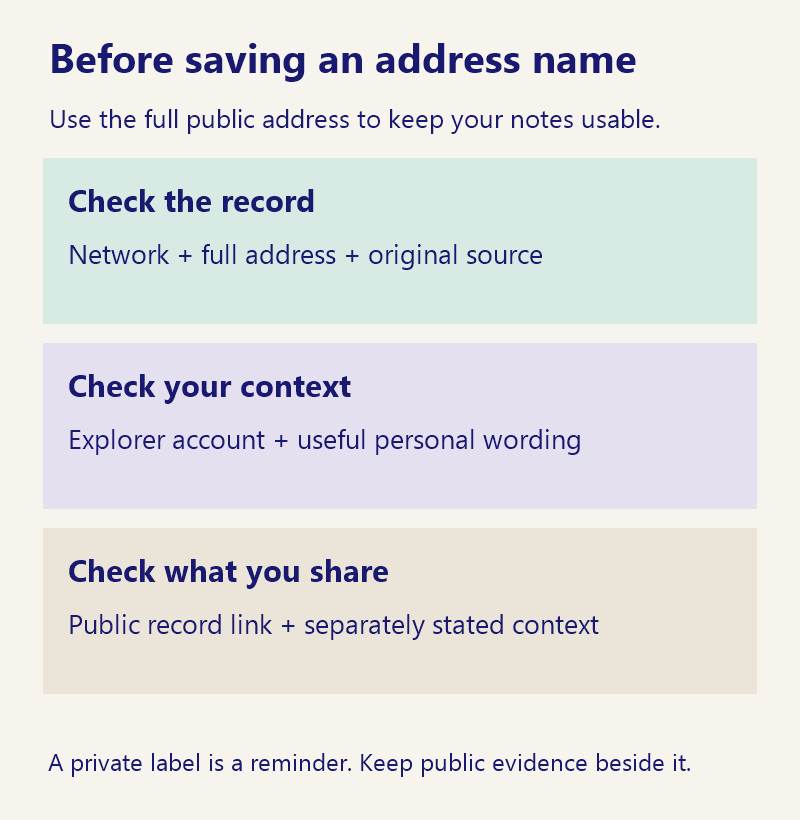
Begin with the place where you obtained the address. If it came from an exchange deposit screen, reopen that screen and check the selected asset and network before recording it. If it came from another person, use the agreed receiving details. Recent transaction history can help you find a record again, but the appearance of an address in that history does not establish that it is the destination you intended.
Open the full public address on the selected network and compare it with the source. On a phone, make room to read the whole string. Copying it into a local note can make comparison easier, provided you also check that the copied string is complete. When a page shortens an address, use its full-address view or copy control and compare against the original. A match of the first and last characters alone leaves the middle unchecked.
Choose wording that explains why you saved the address. The phrase should still make sense when you return a month later. For example, “Address supplied for project invoice review” can remind you of your task without asserting who controls the account. This is a synthetic wording example. It describes no actual payment or organization and should be adapted to the evidence you hold.
Keep the date and source beside the entry in your own records. If a receiving service later issues a different address, check that new address independently. An older personal label can remain useful for historical lookup. Before a new transfer, use the receiving instructions currently provided by the destination service or intended recipient.
Check the record saved in Private Address Names
After you use Add Label in Private Address Names within your signed-in explorer account, inspect the resulting row. Read the full address and your wording together. Return to the public account page and verify that it is the same address you meant to save. If the list shortens the value, open the row’s address link and compare the full address there. Stop the check if the link leads to an unexpected record.
Then check the distinction between your reminder and the public page. Keep your own label separate from any public name tag already displayed. Our read-only case demonstrated a public tag and a private-name entry point on the same account page. It did not test persistence across sign-ins, another person’s access or an authenticated label edit. Those behaviors should be checked within the account where you created the entry before you rely on them.
If you correct an entry in Private Address Names, keep its associated address in view while editing. Similar descriptions can make two entries easy to confuse. A description change should leave you with a clear match to the public record. If you cannot establish that match, preserve the uncertain entry in your notes and return to its source before using it for a new task.
Send a reference another reader can reproduce
When sharing context you kept in Private Address Names, begin with the public record. For the Mainnet case in this article, send the account page and full address. Ask the reader to check the public name tag and the presence of the private-name control. Give the date of your observation because the interface and public tag may change. Describe the test as an entry-point check so the reader knows which steps you actually completed.
If the question concerns one transfer, send its transaction URL and TxID, then identify the sender or recipient field relevant to your question. An account page is a broader history view. Someone opening it later may see many newer transfers above the event you were reviewing. The transaction link gives that person a fixed record to inspect.
Before sharing a screenshot, look at everything visible around the address. Remove unrelated private notes and account details from the copy you intend to share. Keep enough of the public record for the recipient to find the same address or transaction. The full original can stay in your own records with its capture date and context.
Keep a small address-reference worksheet
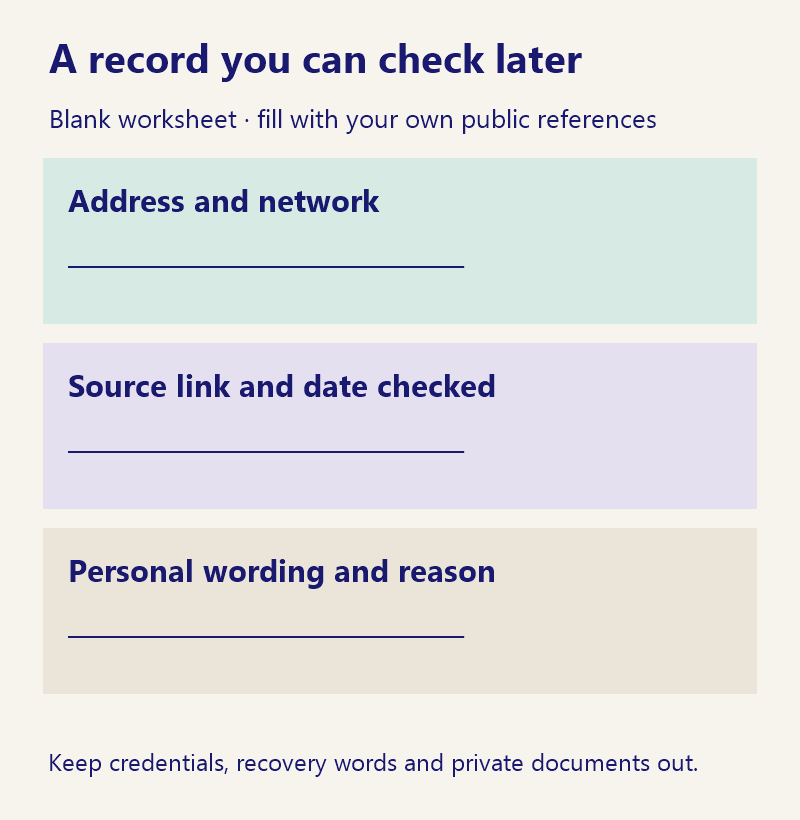
Use one worksheet per address and network. Enter the full address, the original public source, the date you checked it and the personal wording you chose. This gives you a fallback when Private Address Names are unavailable. It also lets you explain the basis of your reminder without presenting the reminder itself as independent evidence.
For our case, the public source is the linked Mainnet account page, and the source-check date is November 18, 2026. The observed public tag was Binance-Hot 14. Leave the personal-label field blank when documenting our test, since we did not save a label. Recording that boundary preserves the result another reader can verify.
Fill the worksheet from the public case
For the account in our November 18 check, write Mainnet in the network field and copy TCQ8X6x9GiK4khydWVKfLJvm8H6WK3RE8B in the full-address field. Record the account link and 06:03 UTC as the observation time. In your source notes, distinguish the public name tag Binance-Hot 14 from the Add a private name control. The first was already visible when the page opened. The second led to the email sign-in dialog.
You can reproduce that public check without completing the Private Address Names workflow. If the tag or control has changed, record the new display and the date instead of copying our observation into your notes as current. A successful comparison means that you matched the network and full address, identified which text was public, and recorded where the private-name operation began. It does not require assigning a label to the account.
Frequently asked questions
Can I browse an address before using Private Address Names?
Yes. The Mainnet example above shows the address and public tag before sign-in.
What if two addresses have similar labels?
Compare the full addresses against the original source you used. A label is a reminder and can be reused by mistake.
Do I need to connect a wallet at the entry point?
The tested control opened an email sign-in dialog. The official instructions place Private Address Names in the explorer account you sign in to.
Can I use an address label to identify a particular transfer?
For one transfer, use the full transaction ID. An address label can refer to many transactions seen on that account.
Will a public link show the name I saved?
Use the link to share the underlying public record. If you need to share your own description, provide it separately and say who supplied it.
AI assisted with drafting and organization. Tronscan News is an independent publication.
Leave a Reply